Creating the perfect LinkedIn post image is crucial for capturing attention and maximizing engagement. With diverse screen sizes and devices in play, ensuring your visual content is optimized can be challenging. This guide will walk you through the essentials, providing step-by-step advice to elevate your LinkedIn presence.
Understanding LinkedIn Post Image Dimensions
To start, it’s essential to know the ideal image dimensions for different LinkedIn features. Whether it’s for a standard post, carousel, cover photo, or featured image, understanding these specifications helps maintain high-quality visuals across all platforms.
Standard Post Image Size
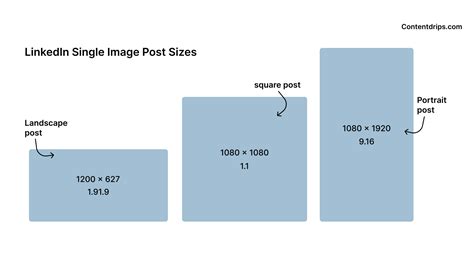
The standard post image on LinkedIn should be 1200 x 627 pixels. This size ensures that your image looks great on both desktop and mobile devices, providing a balanced aspect ratio that is visually appealing. To achieve the best results:
- Create your image at 1200 x 627 pixels.
- Ensure the text is large and readable; use a minimum font size of 24px.
- Save the image in JPEG or PNG format for the best quality.
Detailed Steps to Create an Ideal LinkedIn Post Image
To help you dive deeper into optimizing your LinkedIn visuals, here are the detailed steps for crafting an effective standard post image:
1. Open Your Graphic Design Software: Begin with programs like Adobe Photoshop, Canva, or any graphic design tool you’re comfortable with.
2. Create a New Canvas: Set your canvas dimensions to 1200 x 627 pixels and a resolution of 72 dpi for web use.
3. Add Your Main Visual: Incorporate your primary visual content. This could be a graph, an infographic, or an image that aligns with your message. Make sure it fits within the canvas size.
4. Add Engaging Text: Use a large font size (minimum of 24px) and a readable font style to ensure your message is clear. Position the text so that it’s not overshadowed by the image.
5. Include a Call to Action: Encourage your audience to engage with your post by adding a call-to-action such as “Comment below,” “Share your thoughts,” or “Check out our latest blog post.”
6. Save Your Image: Once your design is complete, save it in JPEG or PNG format to maintain high quality.
Carousel Post Image Size
Carousel posts on LinkedIn allow you to share multiple images or videos within one post, enhancing engagement. For each slide in a carousel post, the ideal image size is 1200 x 627 pixels, the same as a standard post. However, you need to remember that carousel posts are treated as individual images, so you’ll need to repeat the process for each slide.
Cover Photo Image Size
Your LinkedIn profile cover photo is one of the first things people notice when viewing your profile. For an optimal cover photo:
- Your image should be 800 x 200 pixels on desktop, but LinkedIn recommends 1536 x 399 pixels to look better on all devices.
- Use high-resolution images to avoid pixelation.
- Ensure important text is large enough to be readable.
Detailed Steps to Create an Ideal LinkedIn Cover Photo
To create a stunning LinkedIn cover photo, follow these steps:
1. Open Your Graphic Design Software: Use programs like Adobe Photoshop, Canva, or GIMP.
2. Create a New Canvas: Set your canvas dimensions to 1536 x 399 pixels for optimal display on all devices.
3. Add Your Main Visual: Incorporate background images or graphics that represent your professional brand. It could be a thematic image related to your industry or a custom design.
4. Add Your Name and Professional Title: Position your name and title in a way that’s readable but doesn’t overshadow the main visual. Use large, bold fonts.
5. Include a Call to Action: Add a small CTA or a brief tagline that encourages viewers to connect with you or visit your profile.
6. Save Your Image: Save the file in JPEG or PNG format to preserve quality.
Featured Image Size
When sharing articles or posts on LinkedIn, you can select a featured image to highlight your content. The recommended size is 1200 x 627 pixels to ensure that the image looks sharp and professional.
Detailed Steps to Create an Ideal LinkedIn Featured Image
To create a compelling featured image for your LinkedIn posts:
1. Open Your Graphic Design Software: Again, use programs like Adobe Photoshop, Canva, or GIMP.
2. Create a New Canvas: Set your canvas dimensions to 1200 x 627 pixels.
3. Add Your Main Visual: Use high-quality images or graphics that represent the content of your post. Ensure the visual is eye-catching and relevant.
4. Add a Clear Headline: Incorporate a headline that summarizes the content and grabs attention. Use a readable font and size.
5. Include a Brief Description: Add a short text that highlights the key points of your article or post.
6. Save Your Image: Save it in JPEG or PNG format to maintain image quality.
Quick Reference
Quick Reference
- Immediate action item: Create a standard LinkedIn post image at 1200 x 627 pixels.
- Essential tip: Use a readable font size of at least 24px for any text in your images.
- Common mistake to avoid: Use low-resolution images; always opt for high-quality visuals.
Practical FAQ
What is the best format for LinkedIn images?
The best formats for LinkedIn images are JPEG and PNG. These formats preserve high quality while maintaining smaller file sizes.
Can I use custom dimensions for LinkedIn images?
LinkedIn recommends specific dimensions to ensure your images look optimal on all devices. While you can upload images of different dimensions, sticking to the recommended sizes like 1200 x 627 pixels for posts and 1536 x 399 pixels for cover photos ensures your visuals display correctly.
How do I make sure my LinkedIn profile looks professional?
To make your LinkedIn profile look professional, ensure your profile picture is clear and professional, use a high-quality and engaging cover photo, and fill out your work experience, skills, and education sections thoroughly. Optimize your LinkedIn post images by following the size guidelines discussed in this guide.
Conclusion
Optimizing your LinkedIn post images is an essential aspect of creating a strong online presence. By understanding the recommended sizes and following our detailed steps, you can ensure your visuals look professional and engaging across all devices. Happy posting!